Ragdoll Football Camera Controls: PC, Mobile & Console
Learn Ragdoll Football camera controls for PC, mobile, and console, including how to rotate the view, adjust zoom, and keep the ball in sight during plays.
Jump to
What Are the Ragdoll Football Camera Controls?
Lose sight of the ball, and your next tackle or receiving route gets much harder to judge. Ragdoll Football camera controls let you rotate your view and adjust your zoom so you can follow the play. Learn the Ragdoll Football camera controls for your device: right-click and drag on PC, drag on mobile, or move the right stick on console.
Zoom has a separate input on every platform. Use your mouse’s scroll wheel on PC, a pinch gesture on mobile, or D-pad up and down on Xbox and PlayStation.
| Platform | Rotate the camera | Adjust zoom |
|---|---|---|
| PC | Hold right-click and drag the mouse | Scroll wheel |
| Mobile | Drag on the screen | Pinch gesture |
| Xbox | Right stick | D-pad up/down |
| PlayStation | Right stick | D-pad up/down |
Start by learning rotation and zoom separately. Rotate until the play is easy to follow, then adjust the distance until you can see both your player and the action around them. Try a wider view when you need to watch more of the field.
The useful distinction in Ragdoll Football camera controls is between where you look and how much you see. Rotate to follow a change in direction. Adjust zoom when your current view feels too tight or too distant.
PC Camera Controls: Right-Click, Drag, and Scroll
On keyboard and mouse, hold the right mouse button while dragging to move the camera. Use the scroll wheel to adjust zoom.
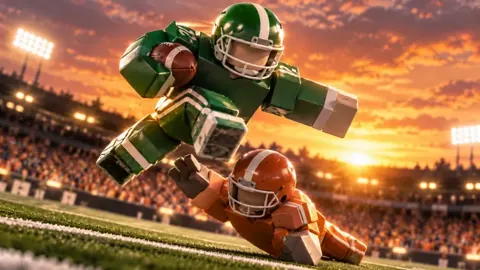
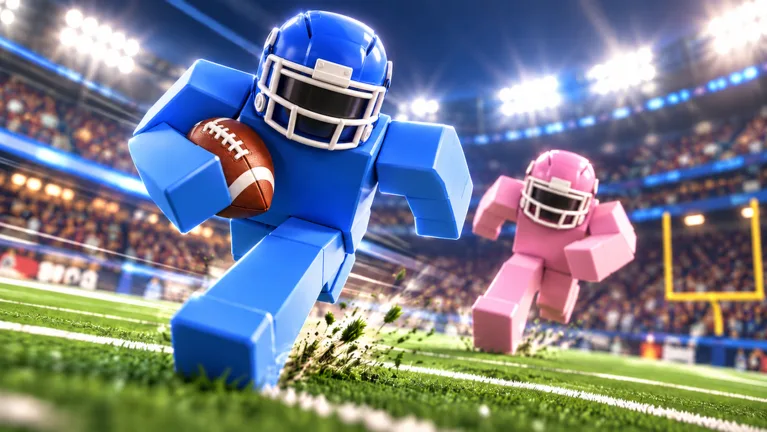 Image: Roblox / BloxyBricks
Keep that separate from left-click, which handles football actions. Left-click can tackle, hike as the quarterback, or kick. Holding left-click aims a throw, and releasing it throws the ball.
That separation matters when you are trying to look downfield. Reach for right-click to change your view; leave left-click for the action you intend to perform.
| PC input | Function |
|---|---|
| Right-click + drag | Move the camera |
| Scroll wheel | Adjust zoom |
| WASD | Move your player |
| Space | Jump |
| Left-click | Tackle, hike as QB, or kick |
| Hold left-click, then release | Aim, then throw |
| X | Dive, hand off, or cancel a throw |
| V | Take a knee for a touchback |
Get your view ready before the play
Set your camera angle before you need to make a quick decision. Face the action, check your zoom, and make sure your own player remains easy to locate.
For quarterback play, frame the field before holding left-click to aim. Give yourself enough room on-screen to look at potential receivers and approaching defenders. If you decide to abandon the throw, press X to cancel it.
For defense, rotate toward the developing play before committing to a tackle. Try to keep the ball carrier and the space ahead of them visible. Looking only at the runner’s current position leaves less screen space for judging their next move.
Practice the Ragdoll Football camera controls alongside WASD movement. Move your player, adjust the view, and repeat until you can distinguish a change in camera direction from a change in your running direction.
Avoid making every correction at once. If the view becomes confusing, stop dragging, locate your player, and make a deliberate adjustment toward the ball.
Mobile Camera Controls: Drag to Look, Pinch to Zoom
On mobile, drag to move the camera and pinch to adjust zoom. Player movement uses the joystick on the left side of the screen.
Throwing uses a different touch action: hold still to aim, then lift to throw. Keep that distinction clear as you learn the controls. A camera drag changes your view; the stationary hold handles throw aiming.
| Mobile input | Function |
|---|---|
| Drag | Move the camera |
| Pinch | Adjust zoom |
| Left-side joystick | Move your player |
| Tap | Tackle, hike, or kick |
| Hold still, then lift | Aim, then throw |
| JUMP button | Jump |
| DIVE button | Dive |
Learn the Ragdoll Football camera controls on mobile by separating your practice into looking, moving, and performing an action. Get comfortable dragging the view before combining it with joystick movement.
Then practice moving while keeping the action visible. Follow a runner with the camera while using the joystick to position your player. Make deliberate view adjustments instead of sweeping across the screen whenever the play changes direction.
Keep touch gestures intentional
Before aiming a pass, settle your camera and zoom. Hold still to aim, then lift when you want to throw. If you need to look elsewhere, remember that dragging is the camera gesture.
Use pinch zoom to find a readable view of the field. Pull the camera farther back when you want more surrounding space visible, and bring it closer when your player becomes difficult to track.
Check your view again after changing zoom. A comfortable distance still needs the right angle: seeing more field does little for you if the ball is outside the frame.
Keep the JUMP and DIVE buttons in mind while following the action. Camera movement helps you watch the play, but those actions have their own buttons.
Console Camera Controls: Right Stick and D-Pad
On Xbox and PlayStation, move the right stick to control the camera. Press D-pad up or down to adjust zoom, and use the left stick to move your player.
The camera layout is shared across both console control schemes. The football actions use the corresponding Xbox or PlayStation buttons.
| Action | Xbox | PlayStation |
|---|---|---|
| Move | Left stick | Left stick |
| Camera | Right stick | Right stick |
| Zoom | D-pad up/down | D-pad up/down |
| Jump | A | Cross |
| Dive / hand off | X | Square |
| Tackle / hike as QB / kick | RT | R2 |
| Aim and throw | Hold RT, release to throw | Hold R2, release to throw |
| Cancel throw | LT | L2 |
| Take a knee for a touchback | B | Circle |
| Menus | Y | Triangle |
Practice using the sticks for their separate jobs. Move with the left stick and adjust your view with the right stick. Keep your player visible while turning the camera toward the play.
When learning Ragdoll Football camera controls on console, set your zoom before practicing throws or tackles. Work from a view you can comfortably read, then concentrate on following the action with the right stick.
Keep camera movement separate from throwing
As quarterback, hold RT on Xbox or R2 on PlayStation to aim. Release that trigger to throw. Cancel with LT or L2 if you decide against the pass.
Frame your view before beginning that sequence. Look downfield, locate a receiving option, and then start aiming. Practice the cancel input as well so you can back out of a throw deliberately.
On defense, turn the camera toward the ball carrier while positioning your player with the left stick. Keep some of the surrounding field visible so you can watch the runner’s movement before using the tackle input.
Keep the Ball Visible Through Passes, Runs, and Tackles
Knowing the buttons is only part of using Ragdoll Football camera controls. Build the habit of adjusting your view for the play in front of you.
Ragdoll Football uses physics-driven contact, with bodies colliding, grabbing, and dragging during tackles. Keep your camera centered on the relevant action so you can follow what happens after contact.
Frame passing plays before aiming
As quarterback, look for a view that includes your player, potential receivers, and nearby pressure. Avoid tightening the zoom so much that you have to keep turning just to inspect the area around you.
Use this sequence when practicing:
- Face the developing play with your camera input.
- Adjust zoom until the field is readable.
- Locate a receiver before starting your throw input.
- Use your platform’s cancel control if you abandon the pass.
These are viewing habits to practice, rather than a reason to rush the throw. Give yourself a clear picture before committing.
Track the ball while receiving
While running a route, adjust your camera to keep the passing action in view. Try to watch the quarterback and the space around your player as the play develops.
When the pass goes up, follow its direction with the camera. If you lose sight of it, rotate toward the flight path and reassess your zoom. Avoid repeatedly swinging the view in opposite directions.
Keep movement and camera adjustments deliberate. Use the movement input to position your player and the camera input to maintain a useful view of the pass.
Watch the runner and the space ahead
On defense, frame more than the ball carrier’s jersey. Leave room on-screen to watch where the runner is heading.
Rotate as the play changes direction, then position your player before tackling. Resist the urge to replace every movement correction with a camera turn. Your view and your player’s position each need attention.
The same principle applies when carrying the ball: keep the running space and approaching defenders visible. Adjust the camera toward the route you are considering.
Reset a confusing view
If the field becomes difficult to read, simplify your inputs:
- Locate your player.
- Rotate toward the ball or active play.
- Adjust zoom until nearby players are distinguishable.
- Resume following the action with smaller corrections.
Use Ragdoll Football camera controls to maintain a readable picture throughout the play. Practice rotation, zoom, movement, and football actions in that order, then combine them as you become comfortable.
Jump into Ragdoll Football on Roblox and practice the inputs for your platform.
FAQ
What are the Ragdoll Football camera controls on PC?
Hold the right mouse button and drag to move the camera. Use the scroll wheel to adjust zoom. Left-click handles football actions, including tackling, hiking, kicking, and aiming throws.
How do you move the camera and zoom on mobile?
Drag on the screen to move the camera and use a pinch gesture to adjust zoom. Move your player with the joystick on the left side. For throwing, hold still to aim and lift to release the pass.
How do you control the camera on Xbox and PlayStation?
Use the right stick to move the camera and D-pad up/down to adjust zoom. The left stick moves your player on both console control schemes.
What should you do when you lose sight of the ball?
Rotate toward the play, then adjust zoom if your view is too tight. Locate your player before making more corrections. During passing plays, try to keep enough field visible to follow the quarterback, your position, and the pass.
Continue with
 Ragdoll Football Controls: PC, Mobile & Console GuideLearn Ragdoll Football controls for PC, mobile, Xbox, and PlayStation. Master throwing, tackling, diving, and camera movement before your next game starts.
More in Controls
Ragdoll Football Mobile Controls: Touchscreen Guide
Learn Ragdoll Football mobile controls for tackling, throwing, jumping, and camera movement. Get practical touch tips for your next Roblox football game.
Ragdoll Football PlayStation Controls: Complete Guide
Learn Ragdoll Football PlayStation controls for passing, tackling, diving, and kicking. Use this button guide to handle every snap and sharpen your game.
Ragdoll Football Xbox Controls: Buttons and Pass Tips
Learn Ragdoll Football xbox controls for passing, tackling, diving, and kicking. Use the full Xbox button layout and practical tips to handle every play.
Join the community
Official channels for news, updates and player help: