
Ragdoll Football Mobile Controls: Touchscreen Guide
Learn Ragdoll Football mobile controls for tackling, throwing, jumping, and camera movement. Get practical touch tips for your next Roblox football game.
Jump to
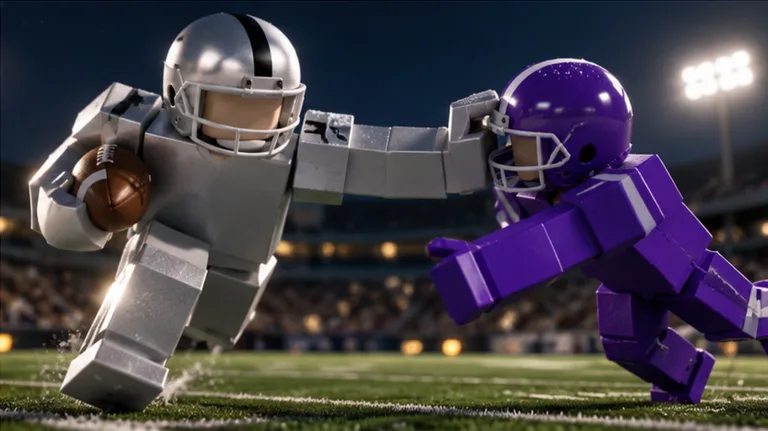
Ragdoll Football Mobile Controls at a Glance
Ragdoll Football mobile controls put tackles, throws, and dives under your fingertips. Learning the difference between a quick tap, a steady hold, and a camera drag helps you stay focused when the pocket collapses or a runner changes direction. Start with these Ragdoll Football mobile controls, then practice using each action in the right situation.
The mobile layout combines a movement joystick, touch gestures, and dedicated jump and dive buttons. Several actions share an input, so pay attention to your role and the current play.
| Action | Mobile control |
|---|---|
| Move | Joystick on the left side |
| Tackle | Tap |
| Hike | Tap |
| Kick | Tap |
| Aim a throw | Hold still |
| Release a throw | Lift your finger |
| Move the camera | Drag |
| Zoom | Pinch |
| Jump | JUMP button |
| Dive | DIVE button |
Learn movement and camera control before trying to handle every position. Use the left joystick to steer, then adjust your view with a drag. Keep track of where the ball is and which direction the play is moving.
Next, separate your short inputs from your held inputs. A tap handles tackling, hiking, or kicking, depending on the situation. Throwing uses a hold followed by a release.
The game centers on physical contact: bodies collide, grab, and drag instead of playing canned tackle animations. Give yourself room to line up a play. A tackle attempt and a well-positioned tackle attempt are different things.
For your opening practice, focus on this checklist:
- Find the left-side joystick.
- Locate the JUMP and DIVE buttons.
- Practice dragging the camera without losing sight of the action.
- Recognize when you need a tap versus a held touch.
Keep those basics comfortable before chasing a highlight play.
Official page: Ragdoll Football (roblox.com)
How to Hike, Aim, and Throw on Mobile
The throwing sequence is the key distinction in Ragdoll Football mobile controls: hold still to aim, then lift your finger to throw. Hiking uses a tap, so separate starting the play from releasing the pass.
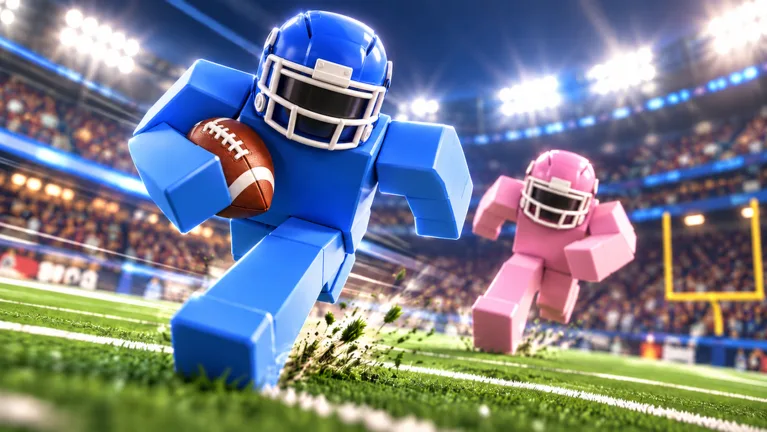 Image: Roblox / BloxyBricks
Think through your receiver choice before committing to the throw. Look across the field, identify an open teammate, and keep the defense in view. Avoid choosing a target solely because that player is far downfield; check the space around the receiver, too.
| Situation | Input | Result |
|---|---|---|
| Hiking the ball as quarterback | Tap | Hike |
| Preparing a pass | Hold still | Aim the throw |
| Sending the pass | Lift your finger | Throw |
| Kicking situation | Tap | Kick |
Build a Deliberate Passing Sequence
Use this order to organize your decisions:
- Check the field. Locate teammates and defenders before starting your passing action.
- Hike with a tap. Begin the play when you are ready to read the defense.
- Choose your target. Look for a receiver with space around the intended destination.
- Hold still to aim. Keep the aiming input deliberate.
- Lift to throw. Release when you have committed to the pass.
Treat this as a practice sequence, then adapt your decisions to the developing play. A receiver who looked open before the hike can draw coverage afterward.
Keep camera adjustments purposeful. Set up a useful view before aiming whenever possible, so you can concentrate on the receiver instead of searching for the ball or rotating your perspective.
If a passing attempt goes badly, review the decisions separately. Did you identify the receiver early enough? Were defenders already nearby? Did you lift before you intended to release? Work on the specific mistake instead of changing your entire routine after one possession.
When learning Ragdoll Football mobile controls, make a clean aiming gesture and an intentional release your immediate goals. Add more ambitious passing decisions as those inputs become familiar.
Tackling, Running, Jumping, and Diving
On defense, tap to tackle. Use the joystick to approach the ball carrier, and keep your camera pointed toward the developing run.
Position yourself before attempting contact. Aim your approach toward the runner’s path instead of following directly behind every turn. If the runner cuts, adjust your movement before making another attempt.
Ragdoll Football mobile controls give you separate JUMP and DIVE buttons. Learn their locations well enough that you can find them without taking your attention away from the field.
Approach Tackles With a Clear Angle
Use these habits while defending:
- Keep the ball carrier visible.
- Steer toward the route the runner is taking.
- Close the distance before attempting the tackle.
- Adjust your approach when the runner changes direction.
- Return your attention to the ball after contact.
Avoid turning every defensive possession into a series of frantic taps. Focus on reaching the right position and making a deliberate attempt. The physical tackling system makes the approach part of the play, not just the final input.
Watch nearby teammates as well. If another defender is already pursuing from behind, position yourself to challenge a different escape route. Keep enough awareness to react if the ball carrier changes direction.
Carry the Ball With Space in Mind
When running, use the joystick to choose your route and watch the defenders ahead. Look for open field before steering into a crowd.
Change direction with a destination in mind. Steer toward space, then reassess the next defender. Repeated changes without looking ahead can leave you spending more attention on the joystick than on the field.
Practice jumping and diving as separate actions. Locate the JUMP button, use it deliberately, and keep track of your character afterward. Repeat that process with DIVE. Learn how each action looks during play before combining it with complicated movement.
Keep your practice focused: movement first, camera awareness alongside it, then a deliberate action. That sequence gives you a specific skill to improve each possession.
Camera and Zoom Gestures Without Losing the Play
Camera control deserves as much attention as tackling. You steer with the left joystick, rotate the view by dragging, and adjust zoom with a pinch.
The practical challenge is distinguishing a steady aiming hold from a camera drag. Practice each gesture deliberately so your fingers follow the action you intended.
| What you want to control | Gesture or control |
|---|---|
| Your character’s movement | Left-side joystick |
| Viewing direction | Drag |
| Viewing distance | Pinch |
| Throw aiming | Hold still |
Use a camera angle that lets you follow the ball and read nearby players. Before a play begins, check whether your character or the viewing angle is blocking the space you need to watch.
Adjust zoom around the task in front of you. Try a broader view when reading receiver routes, then check whether you can still follow the ball clearly. During a crowded play, choose a view that keeps the immediate action readable.
Make camera changes with a purpose:
- Turn toward the quarterback while following a passing play.
- Keep the runner visible when pursuing a tackle.
- Look ahead into the space you intend to run through.
- Recheck your view after a collision changes the scene.
Avoid rotating the camera simply because the action feels hectic. Find the ball, identify your next responsibility, and make the adjustment that helps you follow it.
If Ragdoll Football mobile controls feel crowded, practice movement and camera gestures together before adding a throw or tackle. Steer in a chosen direction, drag to follow the field, and settle the view again.
Then add one action. Move into position and tap for a tackle, or prepare your view before holding to aim a pass. Keep each practice goal narrow enough that you can recognize what went well.
Practice With Clear Football Goals
Give your practice a football objective, not just a button to press. Ragdoll Football awards XP for big plays and features an overall-rating climb from 60 to 99 OVR. Use the game’s badge objectives to choose a skill you want to develop.
| Badge | Unlock requirement |
|---|---|
| Anchor | Record 10 tackles in one game |
| 300 Yards | Record 300 passing yards in one game |
| 200 Yards | Record 200 receiving yards in one game |
| Hat Trick | Record 3 interceptions in one game |
| Pick 6 | Intercept a pass and return it for a touchdown |
For tackling practice, work toward Anchor by concentrating on pursuit angles and deliberate tackle attempts. Review your positioning after a miss rather than immediately repeating the same approach.
For quarterback practice, use 300 Yards as a longer-term target. Focus on choosing receivers, preparing your camera, and releasing throws intentionally. Keep the passing objective in mind without forcing a throw into coverage just to chase yardage.
For defensive coverage, practice tracking the quarterback and staying aware of receivers. Hat Trick requires multiple interceptions in one game, while Pick 6 adds a touchdown return after the interception. Those objectives involve reading the play as well as controlling your character.
Use a short review after each possession:
- Which input did I intend to use?
- Did I perform that input deliberately?
- Could I see the ball and nearby defenders?
- Was my movement taking me toward useful space?
Improve one answer at a time. Ragdoll Football mobile controls become easier to manage when your decisions have a clear order: see the play, move into position, then perform the action.
FAQ
What are the basic Ragdoll Football mobile controls?
Use the left-side joystick to move. Tap to tackle, hike, or kick, depending on the situation. Hold still to aim a throw and lift your finger to release it. Drag to move the camera, pinch to zoom, and use the JUMP and DIVE buttons for those actions.
How do you throw the football on mobile?
Hold still to aim, then lift your finger to throw. As quarterback, use a tap to hike the ball. Choose your receiver and prepare your camera view so you can concentrate on aiming and releasing the pass.
How do you tackle in Ragdoll Football on a phone?
Tap to tackle. Use the joystick to approach the ball carrier first, and keep the runner visible with camera adjustments. Practice lining up your approach before making the attempt, especially when the runner changes direction.
Are mobile controls the same as PC controls?
The actions overlap, but the inputs differ. PC uses WASD for movement, Space to jump, and X for diving, handing off, or canceling a throw. Mobile uses a joystick, touch gestures, and JUMP and DIVE buttons. For throwing, PC uses a held left click and release; mobile uses a steady hold and lift.
Continue with
 Ragdoll Football PlayStation Controls: Complete GuideLearn Ragdoll Football PlayStation controls for passing, tackling, diving, and kicking. Use this button guide to handle every snap and sharpen your game.
More in Controls
Ragdoll Football Camera Controls: PC, Mobile & Console
Learn Ragdoll Football camera controls for PC, mobile, and console, including how to rotate the view, adjust zoom, and keep the ball in sight during plays.
Ragdoll Football Controls: PC, Mobile & Console Guide
Learn Ragdoll Football controls for PC, mobile, Xbox, and PlayStation. Master throwing, tackling, diving, and camera movement before your next game starts.
Ragdoll Football Xbox Controls: Buttons and Pass Tips
Learn Ragdoll Football xbox controls for passing, tackling, diving, and kicking. Use the full Xbox button layout and practical tips to handle every play.
Join the community
Official channels for news, updates and player help: