
Ragdoll Football Controls: PC, Mobile & Console Guide
Learn Ragdoll Football controls for PC, mobile, Xbox, and PlayStation. Master throwing, tackling, diving, and camera movement before your next game starts.
Jump to
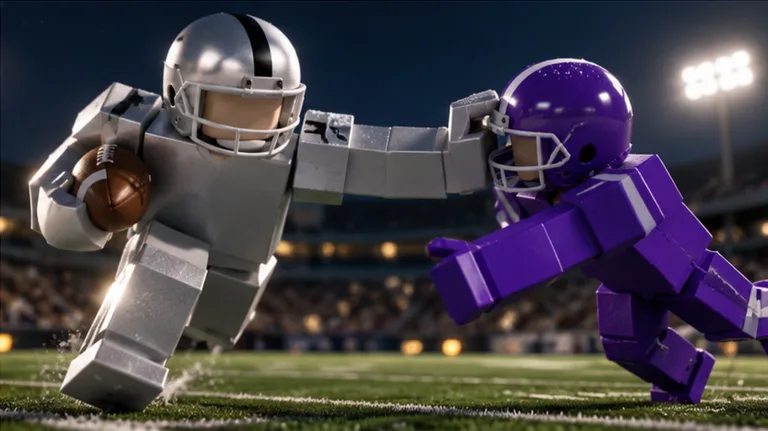
What Are the Ragdoll Football Controls?
One mistimed release can send your pass away before you’re ready. Ragdoll Football controls matter because the same input handles tackles, hikes, and kicks, while holding it prepares a throw. Learn the Ragdoll Football controls for your device, then practice the difference between pressing, holding, and releasing before taking over at quarterback.
The basic layout is straightforward: move with WASD, the mobile joystick, or the left stick. Your main action input changes with the play situation. Throwing adds a separate sequence: hold to aim, then release to send the ball.
These controls cover the October 15, 2026 layout for the Roblox experience. You can play Ragdoll Football on Roblox when you’re ready to put them into practice.
PC Keyboard and Mouse Controls
| Action | PC input |
|---|---|
| Move | WASD |
| Jump | Space |
| Tackle | Left click |
| Hike as quarterback | Left click |
| Kick | Left click |
| Aim a throw | Hold left click |
| Throw the ball | Release left click after aiming |
| Dive | X |
| Hand off | X |
| Cancel a throw | X |
| Take a knee for a touchback | V |
| Move the camera | Hold right click and drag |
| Zoom | Scroll wheel |
Start by separating your movement controls from your ball controls. Use WASD to adjust your position, Space to jump, and the mouse to manage your view and main actions.
Pay particular attention to X. It handles diving, handing off, and canceling a throw. Think about your current situation before pressing it: preparing a pass and chasing a runner call for different actions, even though the key is the same.
For tackling, use left click. For passing, hold left click and release when ready. Keep that distinction clear while learning the PC Ragdoll Football controls.
Mobile Controls: Touch Inputs and On-Screen Buttons
Mobile uses a joystick for movement, touch gestures for the camera, and dedicated jump and dive buttons. The main action follows the same situational pattern as PC: tap for tackling, hiking, or kicking, and hold still to prepare a pass.
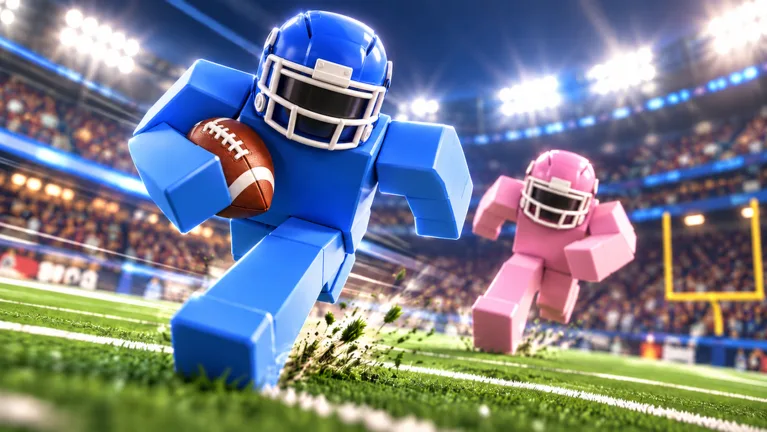 Image: Roblox / BloxyBricks
| Action | Mobile input |
|---|---|
| Move | Joystick on the left side |
| Tackle | Tap |
| Hike | Tap |
| Kick | Tap |
| Aim a throw | Hold still |
| Throw the ball | Lift your finger after aiming |
| Move the camera | Drag |
| Zoom | Pinch |
| Jump | JUMP button |
| Dive | DIVE button |
The detail to remember is hold still, then lift to throw. Treat releasing your touch as the decision to pass. Keep your finger down while preparing the throw, and lift it when you want the ball to leave.
Practice camera movement separately from passing. Drag to adjust your view, then use the pinch gesture to change your zoom. Set up a view that lets you follow both your character and the play before concentrating on touch timing.
Keep your movement deliberate while learning the joystick. Try following a receiver or approaching a ball carrier without adding jumps and dives immediately. Add those buttons after you feel comfortable moving and looking around.
When switching from keyboard to mobile, rebuild the sequence around touch: move with the joystick, adjust the camera, and use the appropriate action. The mobile Ragdoll Football controls use fewer physical buttons, but you still need to distinguish a tap from a held touch.
Xbox and PlayStation Controller Controls
On console, movement and camera control sit on separate sticks. The right trigger handles tackling, hiking, kicking, and throwing, while the left trigger cancels a pass you’re aiming.
Read each controller pair as Xbox first, PlayStation second.
| Action | Xbox | PlayStation |
|---|---|---|
| Move | Left Stick | Left Stick |
| Move the camera | Right Stick | Right Stick |
| Zoom | D-Pad Up/Down | D-Pad Up/Down |
| Jump | A | Cross |
| Dive or hand off | X | Square |
| Tackle | RT | R2 |
| Hike as quarterback | RT | R2 |
| Kick | RT | R2 |
| Aim a throw | Hold RT | Hold R2 |
| Throw the ball | Release RT after aiming | Release R2 after aiming |
| Cancel a throw | LT | L2 |
| Take a knee for a touchback | B | Circle |
| Open menus | Y | Triangle |
Learn the trigger relationship early. Hold the right trigger to aim, release it to throw, and use the left trigger to cancel. That gives you a clear sequence to remember when a passing option disappears.
Keep the face buttons separate in your head, too. A or Cross jumps; X or Square handles diving and handing off. B or Circle takes a knee for a touchback.
If you move between PC and console, watch the cancel input. PC puts canceling on X, alongside diving and handing off. Console assigns canceling to LT or L2, while the dive and handoff actions remain on X or Square.
For camera adjustments, use the right stick to look around and D-Pad Up/Down to change zoom. Practice both before your next passing play. The console Ragdoll Football controls give looking and zooming separate inputs, so learn each without rushing through a live decision.
How to Throw, Hike, Hand Off, and Cancel
Passing becomes easier to understand once you break it into distinct actions. Hiking begins the play as quarterback; aiming prepares your throw; releasing sends it. Canceling lets you stop the throw you’re preparing.
| Action | PC | Mobile | Xbox / PlayStation |
|---|---|---|---|
| Hike | Left click as QB | Tap | RT / R2 as QB |
| Aim a pass | Hold left click | Hold still | Hold RT / R2 |
| Release a pass | Release left click | Lift your finger | Release RT / R2 |
| Cancel a pass | X | — | LT / L2 |
| Hand off | X | — | X / Square |
Build the Hold-and-Release Habit
When you’re handling a passing play, focus on the sequence:
- Use the hike input when playing quarterback.
- Look for a receiver with space around them.
- Hold your passing input to aim.
- Release when you want to throw.
- On PC or console, use the cancel input if you decide against the pass while aiming.
Keep your attention on the release. Holding the input prepares the pass; letting go throws it. Don’t release simply because you’re finished adjusting your view—release because you’ve chosen to pass.
Practice aiming and canceling together on PC or console. Prepare a throw, cancel it, and become familiar with that input before you need it under pressure. Learn the escape from an unwanted pass alongside the throw itself.
Recognize Shared Inputs
Several Ragdoll Football controls perform different jobs depending on what you’re doing. Left click, a mobile tap, and RT/R2 all handle tackling, hiking, and kicking in their respective situations.
Before pressing an action button, identify your immediate job. Are you starting the play as quarterback, trying to stop a ball carrier, or taking a kick? Connect the input to that situation instead of memorizing it as a tackle button alone.
The same principle applies to handoffs. On PC, X shares that action with diving and canceling. On console, X or Square shares handing off with diving. Learn the listed binding, then pay attention to the play situation before using it.
Keep Early Passing Decisions Simple
Look for space before committing to the release. If a defender is close to your intended receiver, check another option rather than rushing your input.
Avoid adding unnecessary camera adjustments while you’re learning the throw sequence. Set your view, locate your target, and concentrate on holding and releasing deliberately. Once those actions feel familiar, combine them with movement.
Movement, Tackling, and Camera Tips for Your Next Game
Ragdoll Football uses physical contact: bodies hit, grab, and drag rather than relying on preset tackle animations. Give yourself time to learn how movement and contact fit together.
The game also awards XP for big plays and lets you progress from 60 to 99 OVR. Start with reliable execution of the basic actions before chasing difficult plays.
Approach Tackles Deliberately
Move toward the ball carrier with WASD, the mobile joystick, or the left stick. Use your tackle input when you’re ready to make contact.
Practice approaching from different directions, and watch how your position affects the attempt. Keep the runner in view instead of focusing only on your own character. If you lose sight of the play, adjust the camera before committing to another action.
Keep diving separate from tackling during practice. Dive uses X on PC, DIVE on mobile, and X or Square on console. Tackle uses the main action input. Rehearse them individually so you can choose deliberately during a play.
Make Your Camera Part of the Routine
Camera control belongs in your practice alongside passing and movement.
- PC: Hold right click and drag to look around; scroll to zoom.
- Mobile: Drag to move the camera; pinch to zoom.
- Console: Use the right stick to look around; use D-Pad Up/Down to zoom.
Adjust your view until you can comfortably track the ball and nearby players. Try a wider view when you want more field context, then adjust it as needed to follow the action.
Avoid waiting until you’re under pressure to remember the camera input. Practice moving, looking, and returning your attention to the play as one continuous sequence.
Learn the Touchback Input
Taking a knee has its own binding: V on PC and B or Circle on console. Keep it distinct from jumping and diving, particularly when learning the controller face buttons.
Review the Ragdoll Football controls before each device switch. Remembering the correct pass release, cancel button, and camera gesture gives you fewer inputs to figure out during the play itself.
FAQ
What are the Ragdoll Football controls for throwing?
On PC, hold left click to aim and release it to throw. On mobile, hold still and lift your finger to release the pass. On Xbox or PlayStation, hold RT or R2 to aim, then release the trigger to throw.
How do you tackle in Ragdoll Football?
Use left click on PC, tap on mobile, or press RT/R2 on console. Those same inputs also handle hiking and kicking in the appropriate play situations. Move toward the ball carrier and keep them in view as you approach.
How do you cancel a throw?
Press X on PC while preparing a throw. On Xbox, use LT; on PlayStation, use L2. Learn canceling alongside aiming so you can stop a pass you’ve decided against before releasing it.
What button makes you dive or take a knee?
Dive with X on PC, the DIVE button on mobile, or X/Square on console. To take a knee for a touchback, press V on PC or B/Circle on console.
Continue with
 Ragdoll Football Mobile Controls: Touchscreen GuideLearn Ragdoll Football mobile controls for tackling, throwing, jumping, and camera movement. Get practical touch tips for your next Roblox football game.
More in Controls
Ragdoll Football Camera Controls: PC, Mobile & Console
Learn Ragdoll Football camera controls for PC, mobile, and console, including how to rotate the view, adjust zoom, and keep the ball in sight during plays.

Ragdoll Football PlayStation Controls: Complete Guide
Learn Ragdoll Football PlayStation controls for passing, tackling, diving, and kicking. Use this button guide to handle every snap and sharpen your game.
Ragdoll Football Xbox Controls: Buttons and Pass Tips
Learn Ragdoll Football xbox controls for passing, tackling, diving, and kicking. Use the full Xbox button layout and practical tips to handle every play.
Join the community
Official channels for news, updates and player help: