
Ragdoll Football Kicking Guide: Controls and Key Tips
Learn Ragdoll Football kicking controls on PC, mobile, and console. Get practical tips for kick situations, camera setup, and avoiding input mistakes.
Jump to
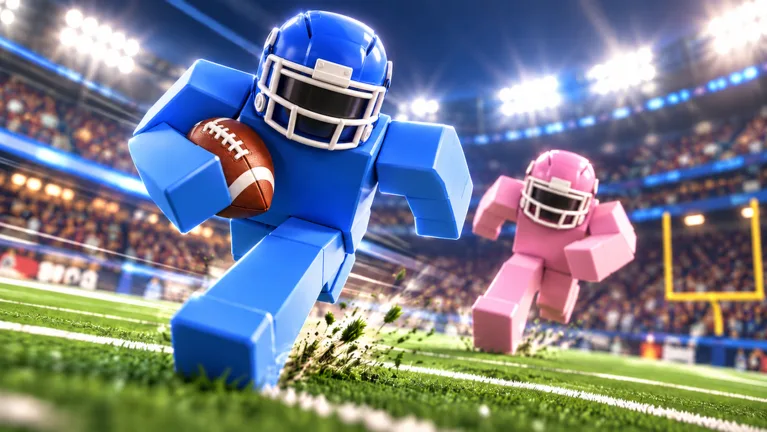
How to Kick in Ragdoll Football
Your next kick starts with knowing what the action button does. Ragdoll Football kicking uses Left Click on PC, a tap on mobile, or RT/R2 on console, and those inputs also handle tackles and hikes. Learn that shared control, and Ragdoll Football kicking becomes easier to follow when the game moves between passing, scoring, and kickoffs.
Use the kick input when you are taking the kick. On keyboard and mouse, click the left mouse button. On a touchscreen, tap. With an Xbox or PlayStation controller, press RT or R2.
The important distinction is between kicking and throwing. Throwing has a separate hold-and-release instruction: hold the action button to aim, then release it to throw. Keep those actions separate as you learn the offense.
Start with this sequence:
- Identify the current play. Keep track of whether you are taking a kick, playing quarterback, or defending.
- Check your view. Use your platform’s camera and zoom controls to keep the field readable.
- Use the kicking input. Click, tap, or press the right trigger when taking the kick.
- Watch the result. Follow the ball and the next play before making another input.
Keep your attention on the play transition after a touchdown. Scoring, taking a kick, and covering a kickoff involve different jobs, even though several actions share the same button.
For your early attempts, focus on recognizing the situation and using the correct control. Build that habit before trying to make every possession a highlight.
Ragdoll Football Kicking Controls on Every Platform
The kicking action is available across PC, mobile, and console. Learn the control for your device, then learn its other uses so a familiar button does not catch you off guard.
 Image: Roblox / BloxyBricks
| Platform | Kick input | Other actions sharing that input |
|---|---|---|
| PC | Left Click | Tackle; hike as quarterback |
| Mobile | Tap | Tackle; hike |
| Xbox | RT | Tackle; hike as quarterback |
| PlayStation | R2 | Tackle; hike as quarterback |
PC: Separate Clicking From Holding
On PC, Left Click is the kick command. Holding Left Click aims a throw, and releasing it throws the ball.
Practice distinguishing those instructions mentally: click for the kicking action; hold and release for passing. Avoid carrying your quarterback habits into every situation just because the same mouse button is involved.
Keep movement controls familiar, too. WASD moves your player, and Space jumps. These controls handle movement around the field, while Left Click handles the context-dependent action.
When learning Ragdoll Football kicking on PC, keep your mouse use deliberate. Check the play before pressing the button, especially after you have just spent a possession throwing passes.
Mobile: Learn the Tap Action Alongside Movement
On mobile, tap to kick. The left-side joystick controls movement, while dragging adjusts the camera and pinching changes zoom.
Passing uses a different gesture: hold still to aim, then lift to throw. Learn that distinction alongside the tap action so you can follow a change of role without mixing the two inputs.
Set your view before concentrating on the kick. Keep the ball and relevant field area visible, then focus on the action you need to perform.
Console: Use the Right Trigger
On Xbox, kick with RT. On PlayStation, use R2.
Those triggers also handle tackling and hiking as quarterback. Holding the trigger aims a throw; releasing it sends the pass.
Keep your fingers familiar with the surrounding controls as well. The left stick moves your player, the right stick adjusts the camera, and D-Pad Up/Down changes zoom. Learn these together so you can adjust your view without searching for a button during a play.
Understand the Shared Action Button
Ragdoll Football kicking makes more sense once you understand the broader control layout. The game assigns several football actions to one primary input, so the situation matters as much as the button.
Read the field before acting. Are you the quarterback starting the play? Are you defending against a runner? Are you taking a kick? Answer that question before you click, tap, or squeeze the trigger.
| Action | PC | Mobile | Xbox / PlayStation |
|---|---|---|---|
| Kick | Left Click | Tap | RT / R2 |
| Tackle | Left Click | Tap | RT / R2 |
| Hike | Left Click as QB | Tap | RT / R2 as QB |
| Aim and throw | Hold Left Click; release to throw | Hold still; lift to throw | Hold RT / R2; release to throw |
Keep Passing Instructions Attached to Passing
If you have spent several plays at quarterback, holding the action button can become your default response. Pause that habit when your role changes.
For Ragdoll Football kicking, remember the direct kick command for your platform. Keep the hold-and-release sequence attached to throwing.
On PC, X can cancel a throw. On console, LT/L2 handles throw cancellation. Learn those commands as part of your passing controls rather than treating every nearby button as another kicking action.
Learn the Next Job Before the Ball Moves
Football possessions can shift quickly. A touchdown leads into another phase, and the kickoff brings movement and tackling back into focus.
Prepare for that change. After taking a kick, watch the play develop instead of staying mentally fixed on the attempt. When you are defending, return your attention to movement and the tackle command.
The game uses physics-based contact: players can hit, grab, and drag rather than relying on canned tackle animations. Keep track of bodies around the ball as well as the ball itself.
That awareness helps you stay involved throughout the possession. A kicking attempt is one action within a game that also asks you to move, pass, tackle, and react.
Set Your Camera Before Focusing on the Kick
Give yourself a readable view before worrying about the attempt. Ragdoll Football provides camera movement and zoom controls on every supported platform.
Use those controls deliberately. Frame the ball and the field area relevant to your play, then leave yourself enough context to follow what happens next.
| Platform | Adjust camera | Adjust zoom |
|---|---|---|
| PC | Right Click + Drag | Scroll |
| Mobile | Drag | Pinch |
| Console | Right Stick | D-Pad Up/Down |
On PC, practice moving the camera with Right Click + Drag separately from using Left Click for actions. Keep those mouse functions distinct while learning the controls.
On mobile, get comfortable with dragging and pinching alongside the movement joystick. Make your camera adjustment, check the field, and then concentrate on the kick.
On console, use the right stick to frame the action and D-Pad Up/Down to adjust zoom. Keep your left-stick movement separate from your camera adjustment as you get comfortable.
For Ragdoll Football kicking practice, choose a view you can read consistently. Resist changing several things after every attempt. Keep the framing familiar while you work on recognizing the kick situation and using the correct input.
After the ball moves, follow the action. Adjust the camera again when the developing play requires it. A useful view should help you understand both your current action and your next responsibility.
Avoid getting distracted by collisions elsewhere on the field. Keep your attention on the ball, your role, and the area you need to watch.
Build a Simple Kicking Practice Routine
Keep practice focused on actions you can repeat: identifying the play, setting the camera, using the kick command, and following the result.
Use this checklist whenever you get a kicking opportunity.
| Check | What to do |
|---|---|
| Current action | Identify whether you are kicking, hiking, throwing, or defending |
| Kick control | Recall Left Click, tap, or RT/R2 for your platform |
| Camera | Adjust the view with your platform’s camera controls |
| Next play | Watch the ball and prepare to move or tackle as needed |
Work on One Habit at a Time
Start with the control itself. When you are taking the kick, use the correct action input and watch what happens.
Next, focus on recognizing transitions. Pay attention after touchdowns and as the game moves into kickoffs. Learn to change your focus along with the play.
Then work on camera familiarity. Practice making a deliberate adjustment without losing track of your movement or action controls.
Keep each attempt easy to evaluate. Ask yourself whether you recognized your role, used the intended input, and kept the action visible. Those questions give you something concrete to improve without inventing an explanation for every result.
Keep Supporting Controls Familiar
Kicking is easier to fit into your game when the rest of the control layout feels familiar.
On PC, X handles diving, handing off, and canceling a throw. V takes a knee for a touchback. On console, X/Square handles diving and handing off, while B/Circle takes a knee for a touchback.
Mobile provides JUMP and DIVE buttons alongside its movement and action gestures.
Review these controls between opportunities. Keep the kick command clear in your mind while learning the actions you need elsewhere on the field.
Stay Involved Between Attempts
Use the rest of the game to practice movement, camera control, and recognizing possession changes. Follow passing plays, watch for changes in direction, and prepare your tackle input when defending.
Ragdoll Football kicking belongs within that wider rhythm. Stay ready for your opportunity without losing track of the current play.
When you are ready to practice, play Ragdoll Football on Roblox and focus on making your controls deliberate from one possession to the next.
FAQ
What button do you use for Ragdoll Football kicking?
Use Left Click on PC, tap on mobile, or RT/R2 on Xbox and PlayStation. The same primary input also handles tackling and hiking, depending on the situation.
How is the kick control different from throwing?
Kicking uses the listed action input. Throwing uses a hold-and-release sequence: hold Left Click or RT/R2 to aim, then release to throw. On mobile, hold still to aim and lift to throw.
Can you kick with an Xbox or PlayStation controller?
Yes. Press RT on Xbox or R2 on PlayStation. Use the right stick for the camera and D-Pad Up/Down for zoom while getting your view ready.
How do you adjust the camera before a kick?
On PC, use Right Click + Drag and scroll to zoom. On mobile, drag and pinch. On console, use the right stick and D-Pad Up/Down. Frame the action before concentrating on your kick input.
Continue with
 Ragdoll Football Passing: Controls and Smarter ThrowsImprove your Ragdoll Football passing with PC, mobile, and console controls, smarter reads, and practical tips to avoid interceptions and move the chains.
More in Offense

Ragdoll Football Cancel Throw: PC and Console Guide
Learn Ragdoll Football cancel throw controls on PC, Xbox, and PlayStation, plus practical quarterback tips for reading coverage and avoiding rushed passes.
Ragdoll Football Catching Guide: Routes and Controls
Improve your Ragdoll Football catching with receiver positioning, camera controls, route tips, and smarter decisions after the catch. Get set for kickoff.
Ragdoll Football Handoff: Controls and Running Tips
Learn Ragdoll Football handoff controls on PC and console, understand shared buttons, and plan cleaner running plays with practical tips for your game.
Ragdoll Football Hiking: Snap Controls and QB Tips
Learn Ragdoll Football hiking controls on PC, mobile, and console, then sharpen your snap timing, passing decisions, and teamwork before your next drive.
Join the community
Official channels for news, updates and player help: