Ragdoll Football Touchback: Controls and Smarter Plays
Learn Ragdoll Football touchback controls on PC, Xbox, and PlayStation, then sharpen your return decisions, ball security, and next offensive possession.
Jump to
How to Take a Touchback in Ragdoll Football
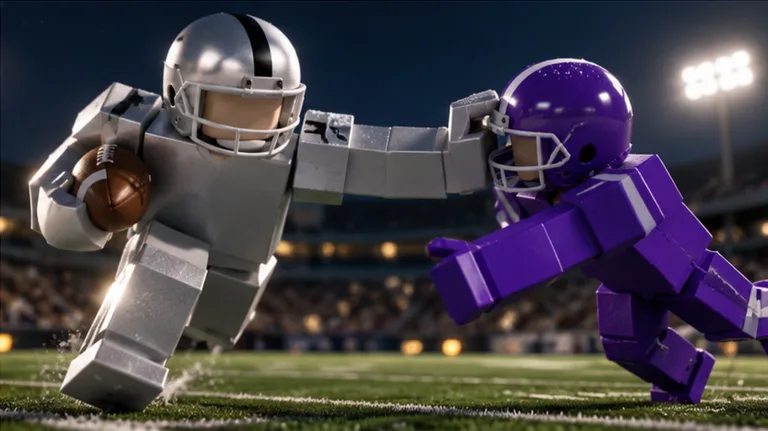
Know your knee button before the next kick comes your way. The Ragdoll Football touchback command is V on PC, B on Xbox, and Circle on PlayStation, giving you a dedicated input when you choose to take a knee. Learning the Ragdoll Football touchback controls keeps that decision separate from diving, throwing, and tackling when the field gets crowded.
Here are the platform inputs to remember:
| Platform | Take a Knee / Touchback |
|---|---|
| PC keyboard | V |
| Xbox controller | B |
| PlayStation controller | Circle |
The controls covered here apply to the October 2026 game. On keyboard, taking a knee has its own key. On controllers, it also has a dedicated face button, separate from the trigger used for throwing and tackling.
Keep that distinction clear before you handle the football. X on PC is not the touchback command: it handles diving, handing off, and canceling a throw. Likewise, Xbox X and PlayStation Square are the dive and handoff buttons.
When you're choosing a touchback, use the knee input deliberately. Avoid cycling through nearby buttons while trying to remember the controls. A dive, a throw, and a knee represent different decisions, so memorize the correct command before the action reaches you.
Keep the reminder simple:
- Keyboard: V takes a knee.
- Xbox: B takes a knee.
- PlayStation: Circle takes a knee.
Build the habit of identifying your platform's knee button alongside its movement and camera controls. That preparation gives you less to think about while tracking the ball and approaching defenders.
Official page: Ragdoll Football (roblox.com)
Decide Between Taking a Knee and Attempting a Return
Make your return decision around the space in front of you. Before committing to a run, check the approaching defenders, your teammates' positions, and the direction you would need to move.
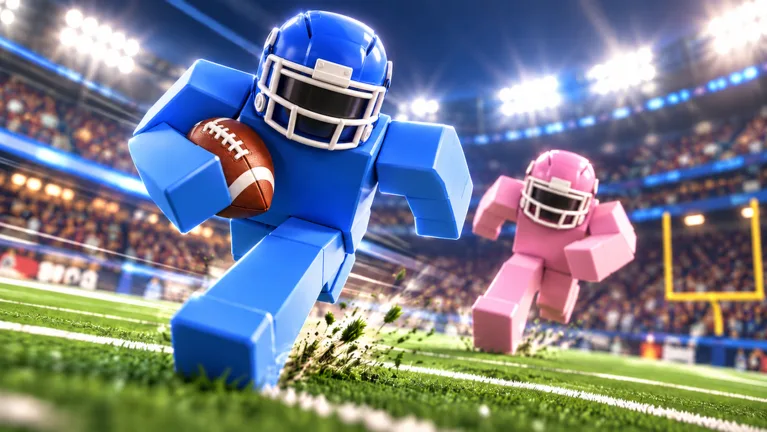 Image: Roblox / BloxyBricks
Ragdoll Football uses physical collisions, grabs, and dragging during tackles. Contact can turn an open-looking run into a crowded struggle, so resist choosing a return solely because a touchdown would look spectacular.
For your Ragdoll Football touchback decision, separate the choice to run from the urge to keep moving. If you intend to take a knee, use the dedicated input. If you choose to attempt a return, give yourself a clear direction instead of drifting while deciding.
Read the Field Before Committing
Use the camera to inspect your surroundings before making your Ragdoll Football touchback decision. On PC, hold right click and drag to move the camera, then use the scroll wheel to adjust zoom. On console, use the right stick for the camera and D-pad Up or Down for zoom.
Look for three things:
- Approaching contact: Identify defenders closing toward your position.
- Available space: Pick a direction before accelerating into traffic.
- Teammate support: Watch where blockers are positioned before following them.
Treat those checks as decision-making advice, not a guarantee of a successful return. A teammate ahead of you still needs to make the block, and defenders can approach from another angle.
Commit to a Route You Can Follow
If you decide to run, keep your attention on the next stretch of field. Follow developing blocks, watch the nearest defender, and avoid steering directly into a cluster of players.
Save elaborate jukes for situations where you can actually track the defenders involved. Gameplay includes missed tackles, broken runs, and fumbles; chasing a highlight adds more decisions to an already physical play.
Choose the play you intend to execute, then use the controls that match it. Memorizing the knee button helps you make that choice without confusing it with an emergency dive.
PC Controls: Keep Touchbacks Separate From Other Actions
The keyboard layout puts several football actions on the same inputs. Your role and current action matter, especially with left click and X.
Use this control map to keep your Ragdoll Football touchback input distinct from the rest of your offensive toolkit:
| Action | PC Input |
|---|---|
| Move | WASD |
| Jump | Space |
| Tackle / Hike as Quarterback / Kick | Left Click |
| Aim a Throw | Hold Left Click |
| Release a Throw | Release Left Click |
| Dive / Hand Off / Cancel Throw | X |
| Take a Knee / Touchback | V |
| Move the Camera | Right Click + Drag |
| Zoom | Scroll Wheel |
The important separation is between V, X, and left click. V handles taking a knee. X handles multiple other actions. Left click changes function depending on whether you're tackling, hiking, kicking, or preparing a pass.
Keep Your Throwing Inputs Deliberate
As quarterback, hold left click to aim and release it to throw. Use X to cancel a throw when you decide against the pass.
Make the passing decision before releasing the button. Find the receiver, check nearby coverage, and keep an alternative in mind if the route becomes crowded. Avoid releasing a pass simply because you've already started aiming.
That same control awareness matters when you're thinking about a touchback. Remembering that holding left click prepares a throw helps prevent you from reaching for it when your intended action is taking a knee.
Use the Camera Before Adding More Movement
Adjust your view so you can follow both the ball and nearby players. Keep zoom at a distance that lets you read the immediate play without losing your own position.
Practice camera movement between plays, then return your attention to the field. If you're still working out right-click dragging while defenders close in, you have another input competing with your football decision.
Start with movement, camera control, and the knee command. Add more demanding combinations once those feel familiar.
Xbox, PlayStation, and Mobile Controls
Controller players have dedicated buttons for taking a knee, diving, and canceling a throw. Learn them separately rather than carrying keyboard assumptions onto the controller.
For a Ragdoll Football touchback, press B on Xbox or Circle on PlayStation.
| Action | Xbox | PlayStation |
|---|---|---|
| Move | Left Stick | Left Stick |
| Move the Camera | Right Stick | Right Stick |
| Zoom | D-Pad Up / Down | D-Pad Up / Down |
| Jump | A | Cross |
| Dive / Hand Off | X | Square |
| Tackle / Hike as Quarterback / Kick | RT | R2 |
| Aim and Throw | Hold RT, Then Release | Hold R2, Then Release |
| Cancel a Throw | LT | L2 |
| Take a Knee / Touchback | B | Circle |
| Open Menus | Y | Triangle |
Remember the Controller Cancel Button
On keyboard, X includes canceling a throw among its functions. On controller, canceling uses LT on Xbox or L2 on PlayStation.
Keep that difference in mind if you switch platforms. Xbox X and PlayStation Square handle diving and handing off, while the left trigger cancels your passing attempt.
Before a possession, mentally separate the three inputs:
- Use the right trigger to aim a pass, then release to throw.
- Use the left trigger to cancel the throw.
- Use B or Circle to take a knee.
That distinction gives each decision a clear place on the controller. Practice remembering the action first and its button second, especially if you're moving between keyboard and console.
Learn Mobile Movement and Ball Controls
Mobile uses touch gestures alongside dedicated jump and dive buttons.
| Action | Mobile Control |
|---|---|
| Move | Left-Side Joystick |
| Tackle / Hike / Kick | Tap |
| Aim a Throw | Hold Still |
| Release a Throw | Lift |
| Move the Camera | Drag |
| Zoom | Pinch |
| Jump | JUMP Button |
| Dive | DIVE Button |
Practice moving the camera without losing track of your running direction. Then work on the difference between tapping for an action and holding still to aim a pass.
Keep JUMP and DIVE distinct while navigating traffic. Choose the action you want before tapping, rather than pressing whichever button is easiest to reach during contact.
Prepare for the Next Offensive Possession
Learning the Ragdoll Football touchback command is one part of handling possession. Give the same attention to your next job: quarterback, receiver, or teammate helping create space.
Ragdoll Football supports servers with up to 14 players, so practice reading your immediate assignment among the surrounding movement. Find the ball, identify your role, and focus on the players affecting your next action.
As Quarterback, Read Before Releasing
Use your aiming time to identify a receiver and inspect the coverage around that route. Avoid locking onto a teammate simply because that player is calling for the ball.
A receiver with defenders nearby presents a different passing decision from one running into open space. Check the route as it develops, and use the cancel command if you decide against throwing.
Keep your platform's sequence straight: hold to aim, release to throw, and use the separate cancel input when needed.
As a Receiver, Create a Clear Target
Move into space where the quarterback can recognize your route. Watch the defenders around you, and avoid crowding another receiver's path.
If coverage follows you, keep reading the play instead of assuming you're still open. Give the quarterback a useful target by paying attention to spacing throughout the route.
Keep the ball in view with your camera. Movement alone won't help you read a pass if your view is pointed away from the developing play.
As a Teammate, Watch the Ball Carrier's Path
When another player has possession, inspect the space ahead of that runner. Coordinate your movement around the developing play rather than chasing the football from behind.
Follow the direction of the run and watch the nearest defenders. Use the physical nature of the game as a reason to pay attention to contact and positioning.
The progression system rewards big plays with XP and supports growth from 60 to 99 OVR. Focus on executing your assignment instead of treating every possession as an individual highlight attempt. Taking a knee, making a passing decision, and supporting a runner all begin with the same habit: know what you're trying to do before pressing the button.
FAQ
What Is the Ragdoll Football Touchback Button on PC?
Press V to take a knee. X handles diving, handing off, and canceling a throw, so keep it separate from your touchback input.
How Do You Take a Knee on Xbox or PlayStation?
Press B on Xbox or Circle on PlayStation. These are separate from the right trigger used for tackling, hiking, kicking, and aiming throws.
Is Diving the Same as Taking a Knee?
No. On PC, X handles diving and V takes a knee. On Xbox, the corresponding buttons are X and B; on PlayStation, they're Square and Circle.
How Do You Cancel a Throw Before Releasing It?
Press X on PC, LT on Xbox, or L2 on PlayStation. To throw instead, release the aiming input: left click on PC, RT on Xbox, or R2 on PlayStation.
Continue with
 Ragdoll Football Cancel Throw: PC and Console GuideLearn Ragdoll Football cancel throw controls on PC, Xbox, and PlayStation, plus practical quarterback tips for reading coverage and avoiding rushed passes.
More in Offense
Ragdoll Football Catching Guide: Routes and Controls
Improve your Ragdoll Football catching with receiver positioning, camera controls, route tips, and smarter decisions after the catch. Get set for kickoff.
Ragdoll Football Handoff: Controls and Running Tips
Learn Ragdoll Football handoff controls on PC and console, understand shared buttons, and plan cleaner running plays with practical tips for your game.
Ragdoll Football Hiking: Snap Controls and QB Tips
Learn Ragdoll Football hiking controls on PC, mobile, and console, then sharpen your snap timing, passing decisions, and teamwork before your next drive.
Ragdoll Football Kicking Guide: Controls and Key Tips
Learn Ragdoll Football kicking controls on PC, mobile, and console. Get practical tips for kick situations, camera setup, and avoiding input mistakes.
Join the community
Official channels for news, updates and player help: